
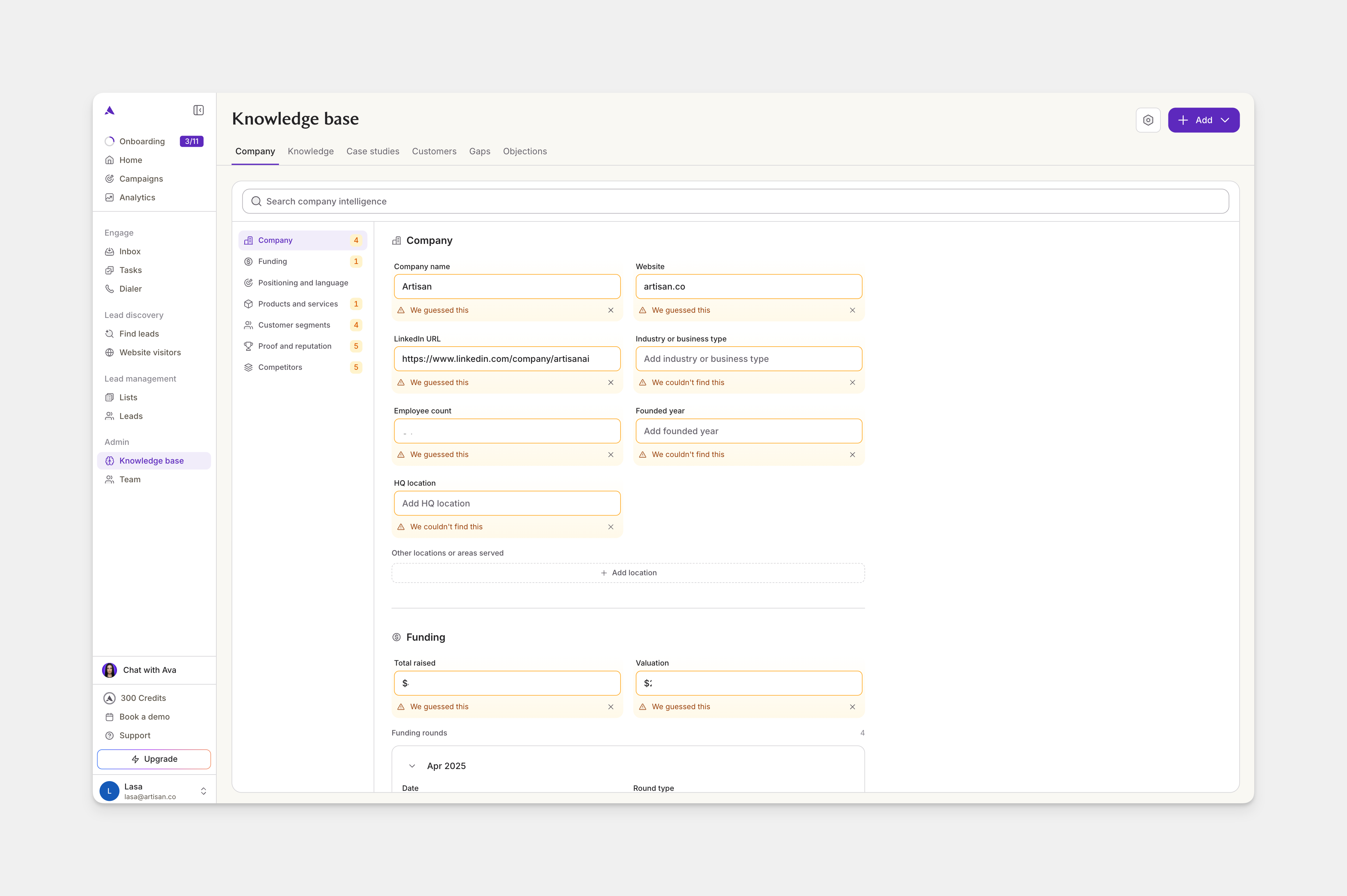
- Company
- Knowledge
- Case studies
- Customers
- Gaps
- Objections
Company
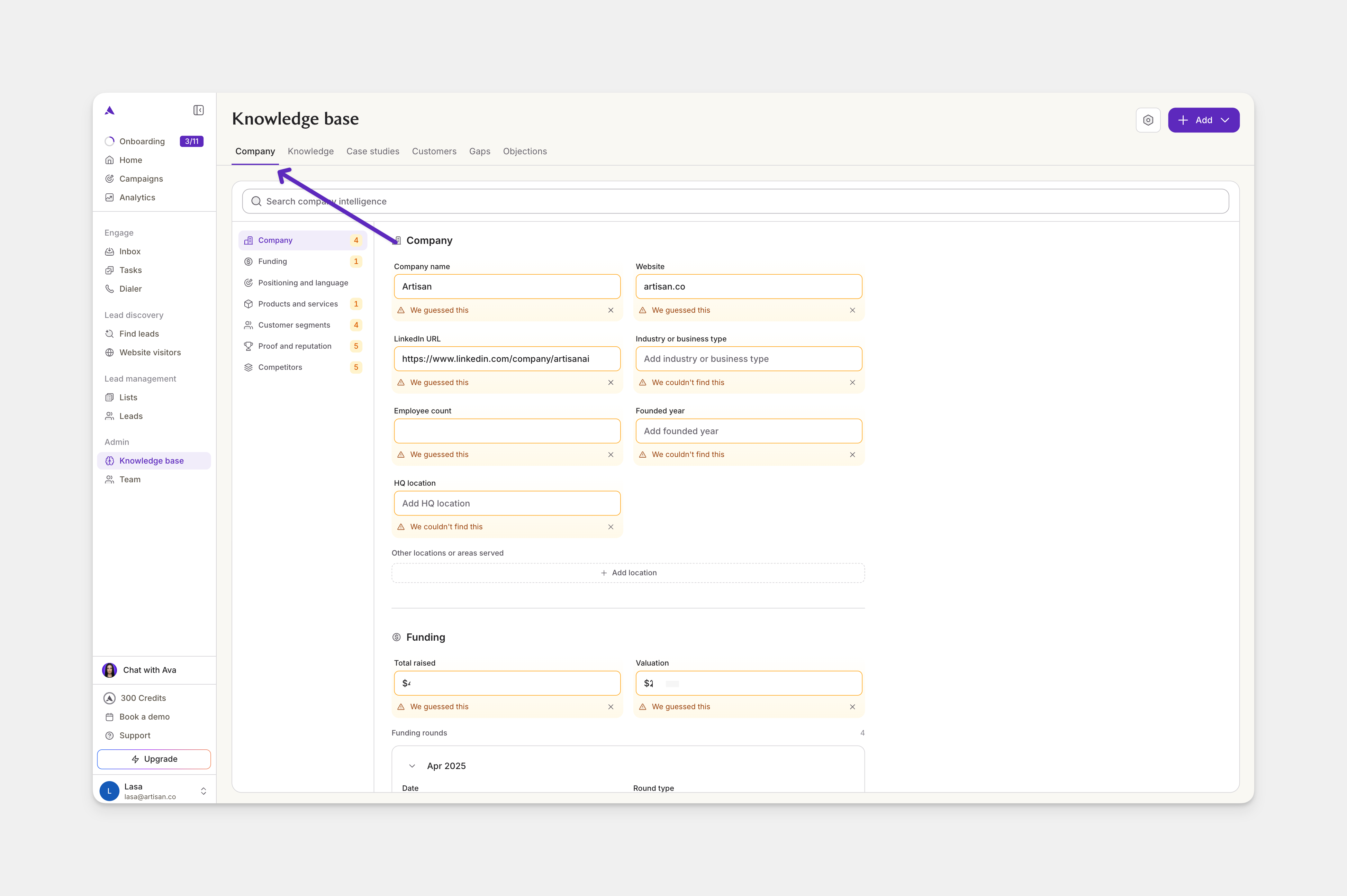
Knowledge
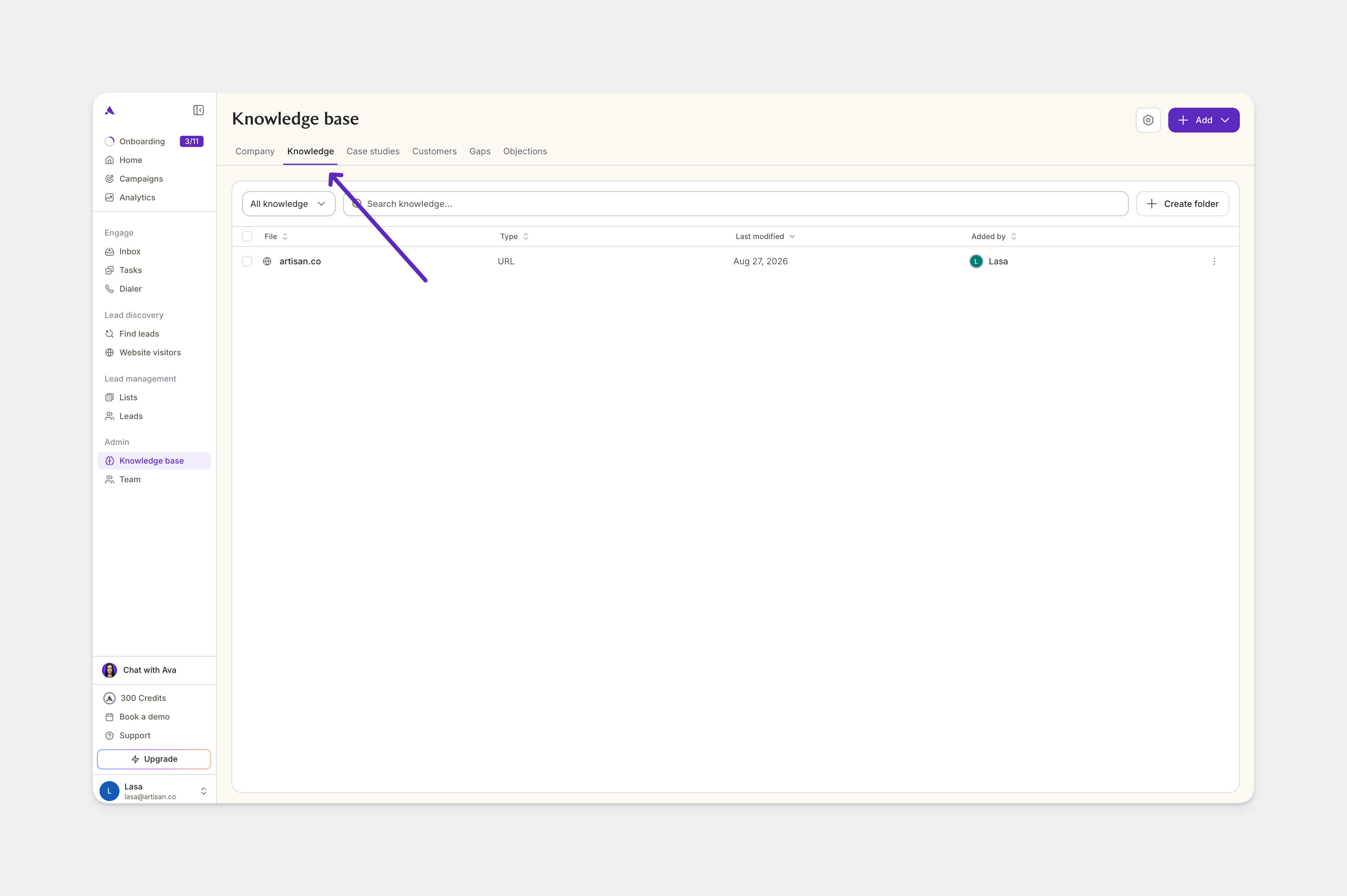
After you add a resource, it needs to be processed before Ava can use it.
Case studies
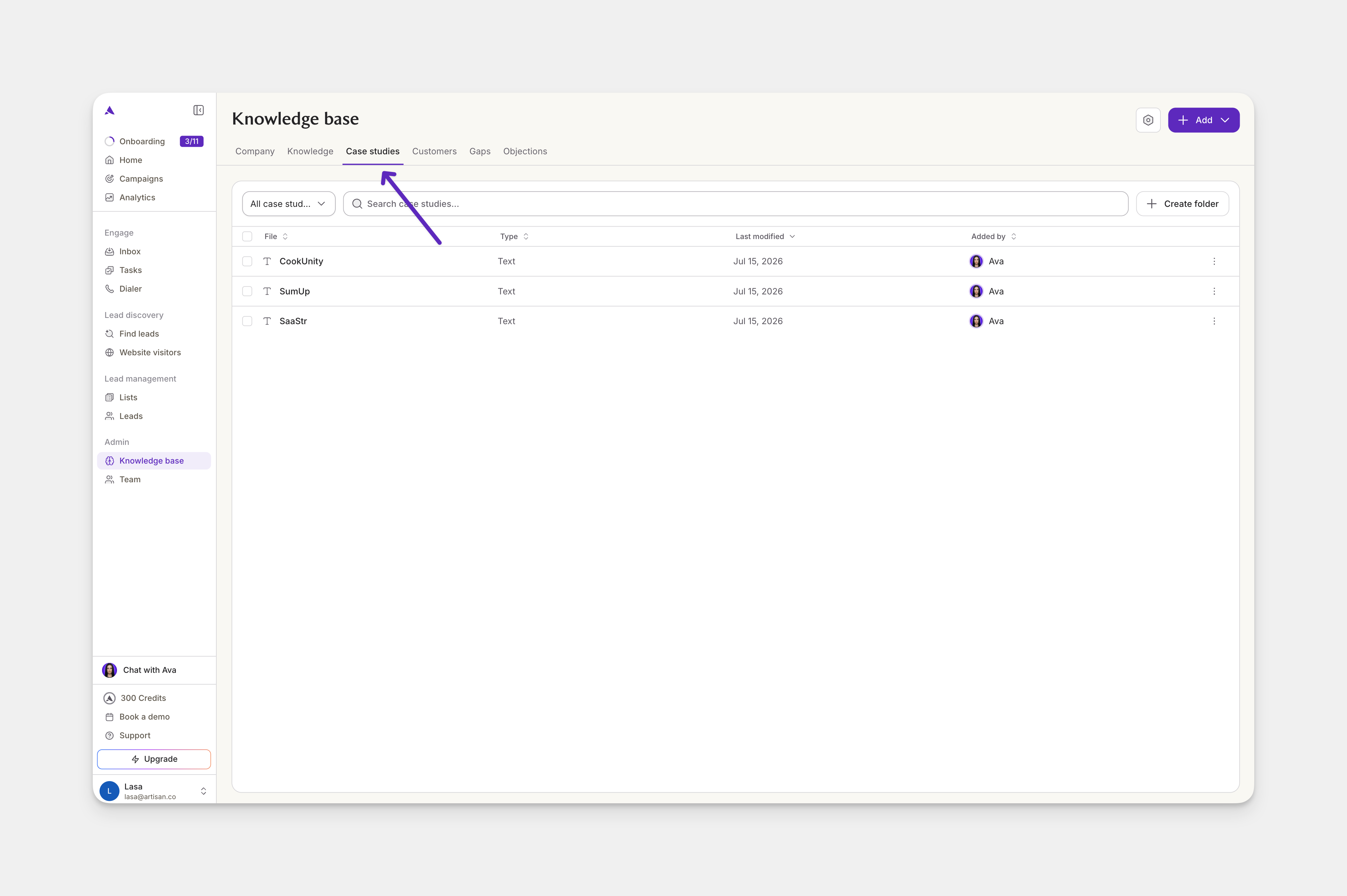
Customers
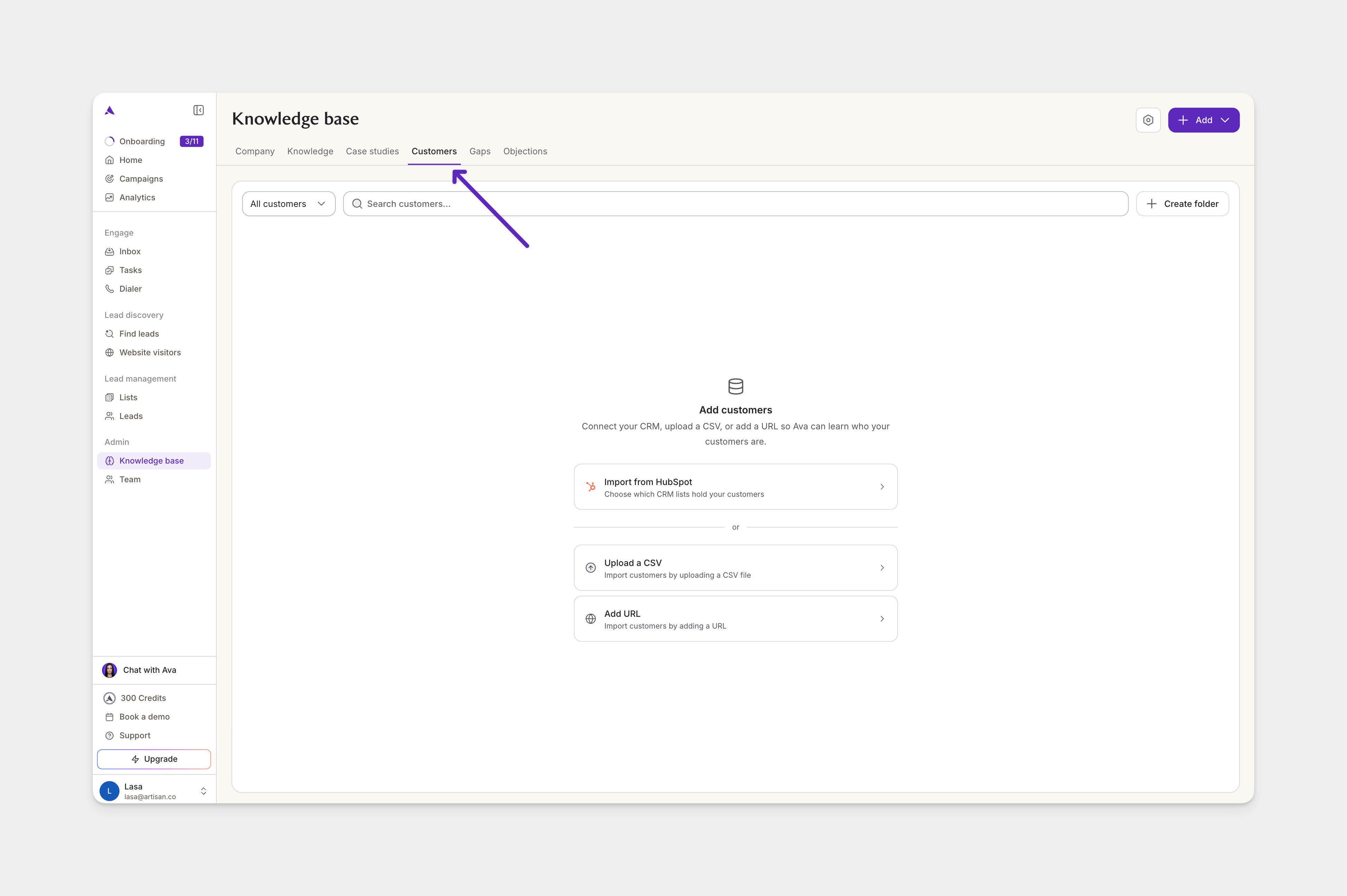
- Import from HubSpot
- Upload a CSV
- Add a URL
Connecting your CRM doesn’t automatically import any customers. You have to choose which companies are imported as customers.
Gaps
Objections
Telling Ava how to use items in the Knowledge base
In the Knowledge and Case studies tabs, each item you add can have its own instructions on how Ava should use it. Open any item to see its details; you’ll find an “Instructions for use” field. Add your instructions there. Ava uses those instructions at the right moment and in the right way.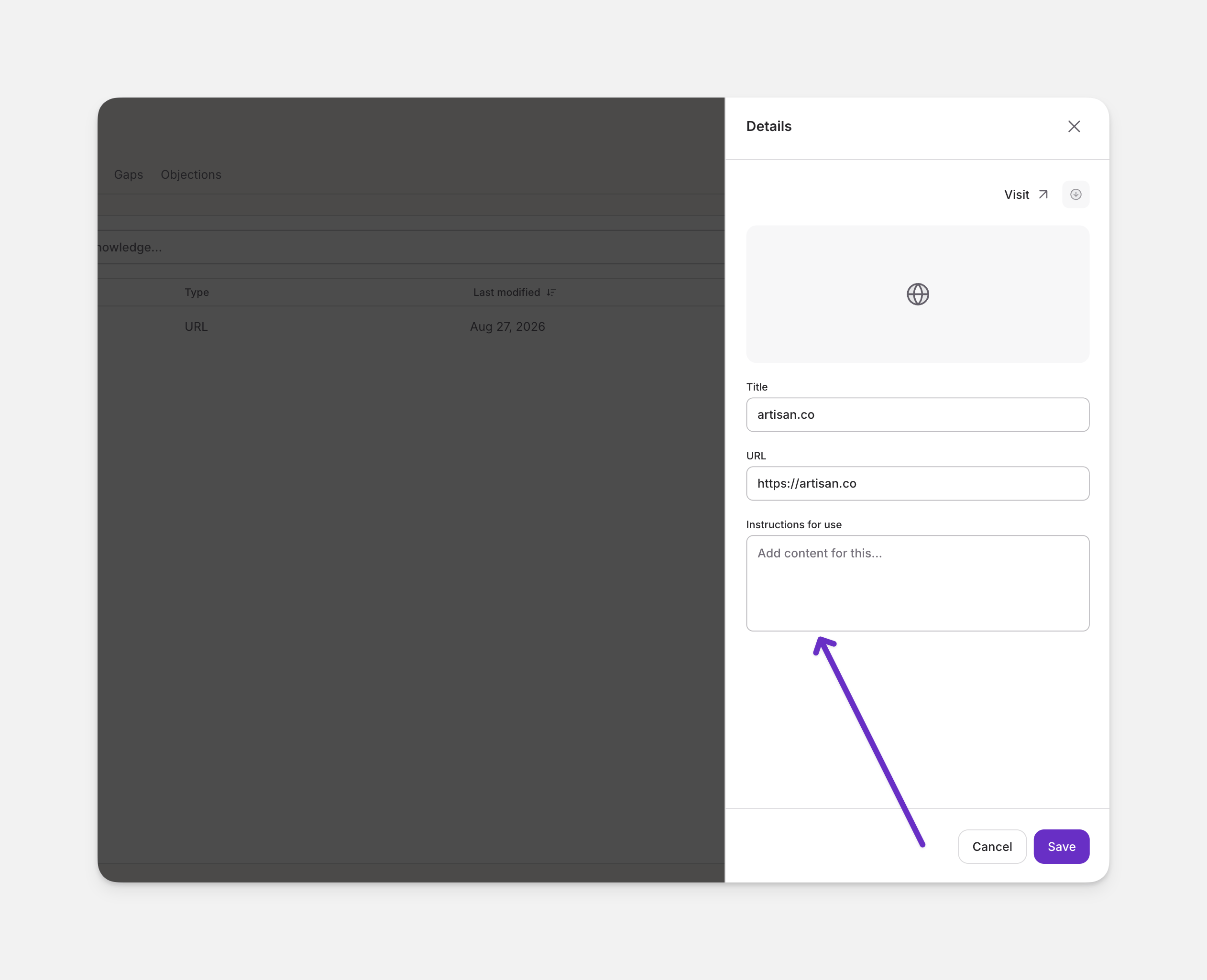
- If you have a document that applies only to certain industries, you can add instructions like, “Only reference this if the customer is in the biotech industry.”
- If you have a sensitive security document, you can add instructions stating, “Only use this when a prospect asks about security or compliance. Never volunteer it.”
Learning from past conversations
From the settings icon at the top right, you’ll find a “Learn from past conversations” option.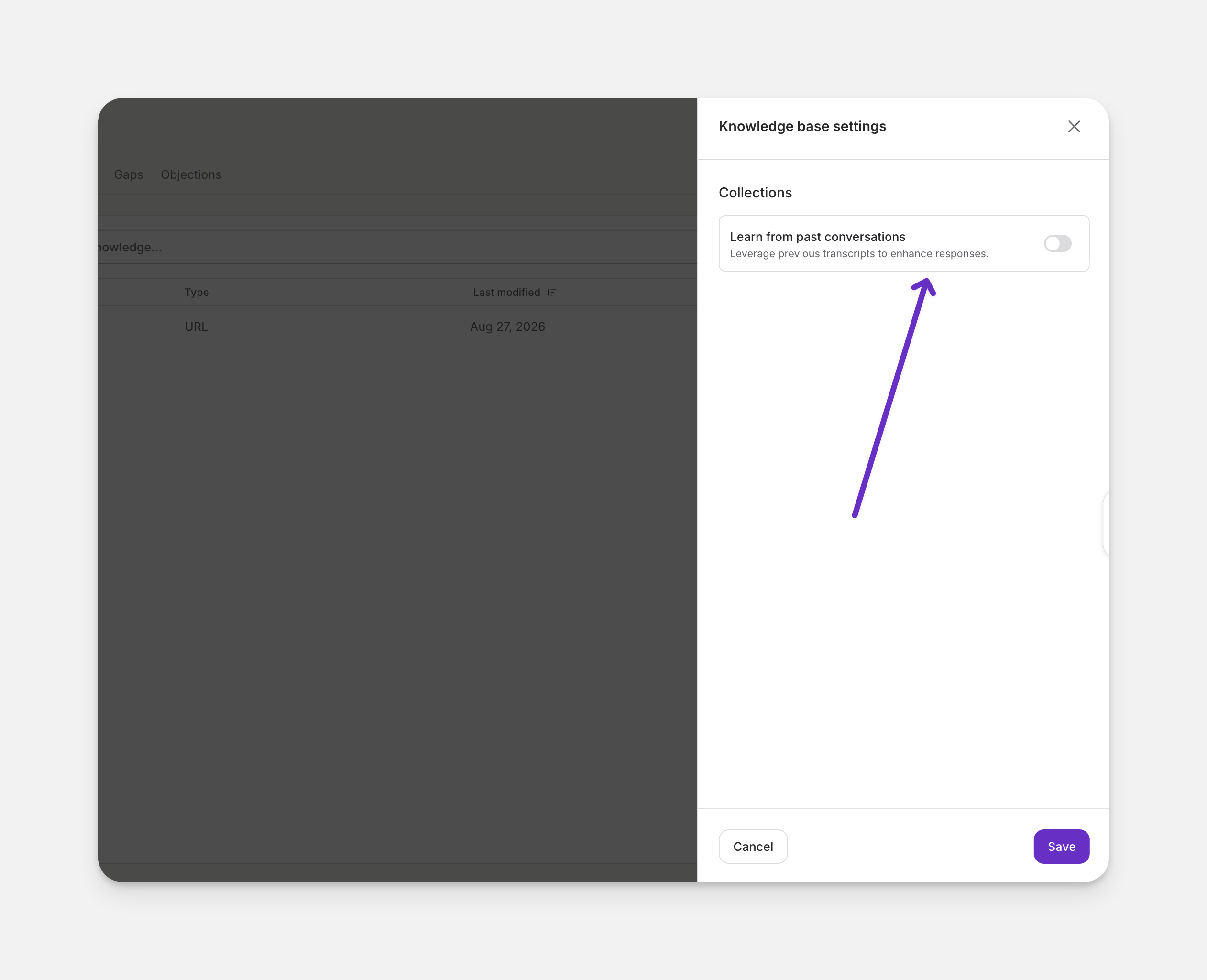
Building your knowledge base with Claude
Claude can build your knowledge base. You give it one prompt, and it reads your website, email, CRM, support desk, call notes, and internal docs. From those, it writes your knowledge files and drafts objections for Ava to handle. You need Claude with Cowork, and optionally Claude for Chrome if you want Claude to upload the finished files to your Artisan account. Turn on the connectors for wherever your company information lives (email, CRM, support desk, call notes, docs) so Claude can gather what it needs to write your knowledge base.- Open Claude and switch to Cowork.
- Set the model to Opus 5 low.
- Turn on auto-approve. Claude runs the research on its own and only stops if something looks unsafe. The research is read-only, so nothing changes in your systems.
- Paste in the prompt and hit enter.
- Along the way, Claude asks you a few clarifying questions about what it couldn’t find. Answer them one at a time.
- You can then download the content Claude has generated, or ask Claude to upload everything to your knowledge base (you’ll need Claude for Chrome for this).
Frequently asked questions
I added a file, but Ava isn't using it. Why?
I added a file, but Ava isn't using it. Why?
It may still be processing. A newly added item is only available to Ava once processing is complete. If you just added it, wait for it to appear before using it.
Where do knowledge gaps come from?
Where do knowledge gaps come from?
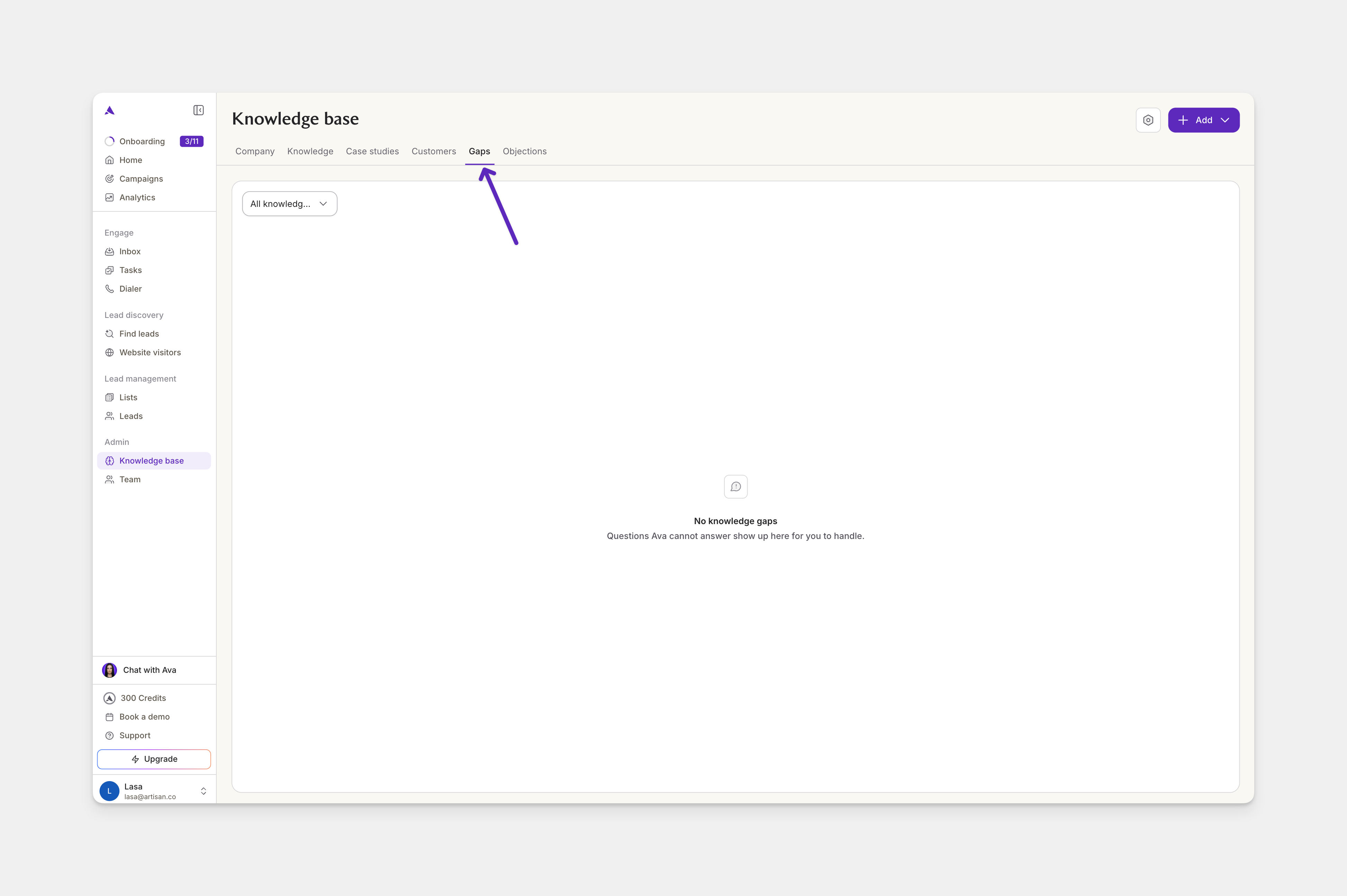
Gaps are collected from Ava’s conversations with prospects, specifically her email replies (autonomous replies) and inbound website chat. When a prospect asks something Ava can’t answer, that question is logged in the Gaps tab for you to answer.
Do I need the Artisan connector in Claude to build the knowledge base?
Do I need the Artisan connector in Claude to build the knowledge base?
No. You don’t need the Artisan Claude connector to ask Claude to create your knowledge base. Learn more about the Artisan connector in Claude.