
You need a Dialer seat and a phone number before you can call leads. Dialer seats and phone numbers are paid add-ons. Phone numbers belong to your organization and are shared with everyone with a Dialer seat. See pricing to learn more.
The Dialer page
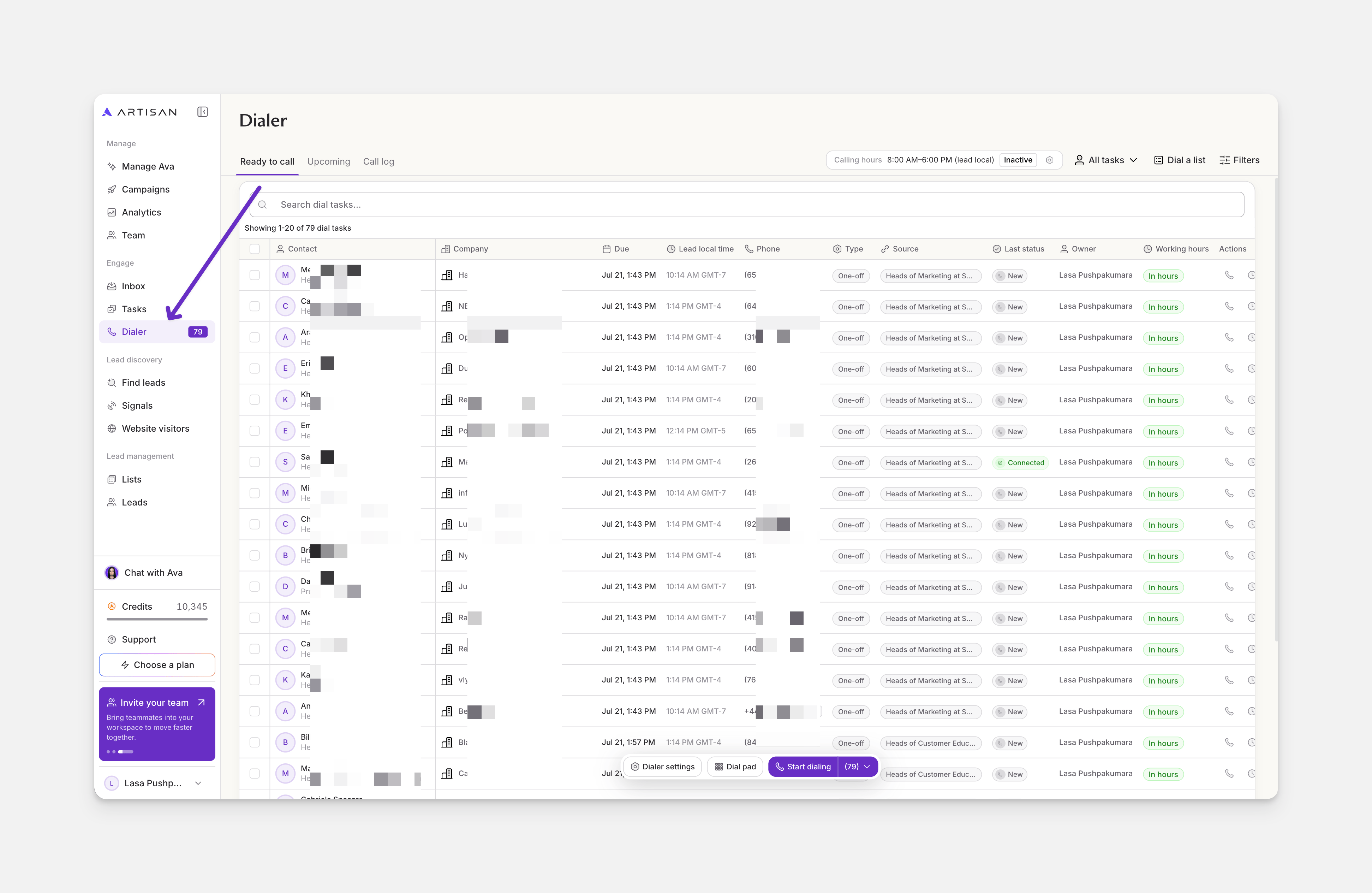
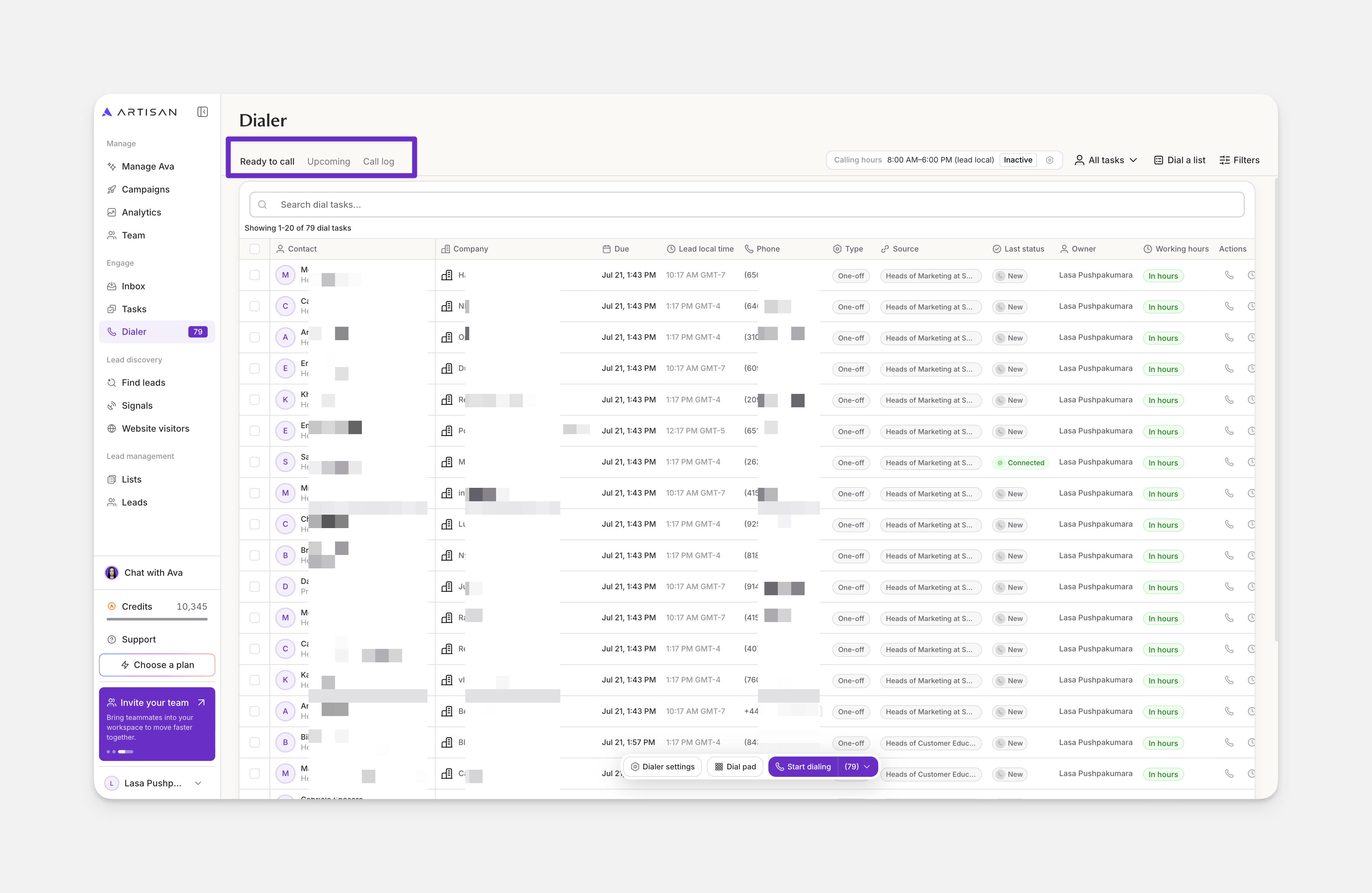
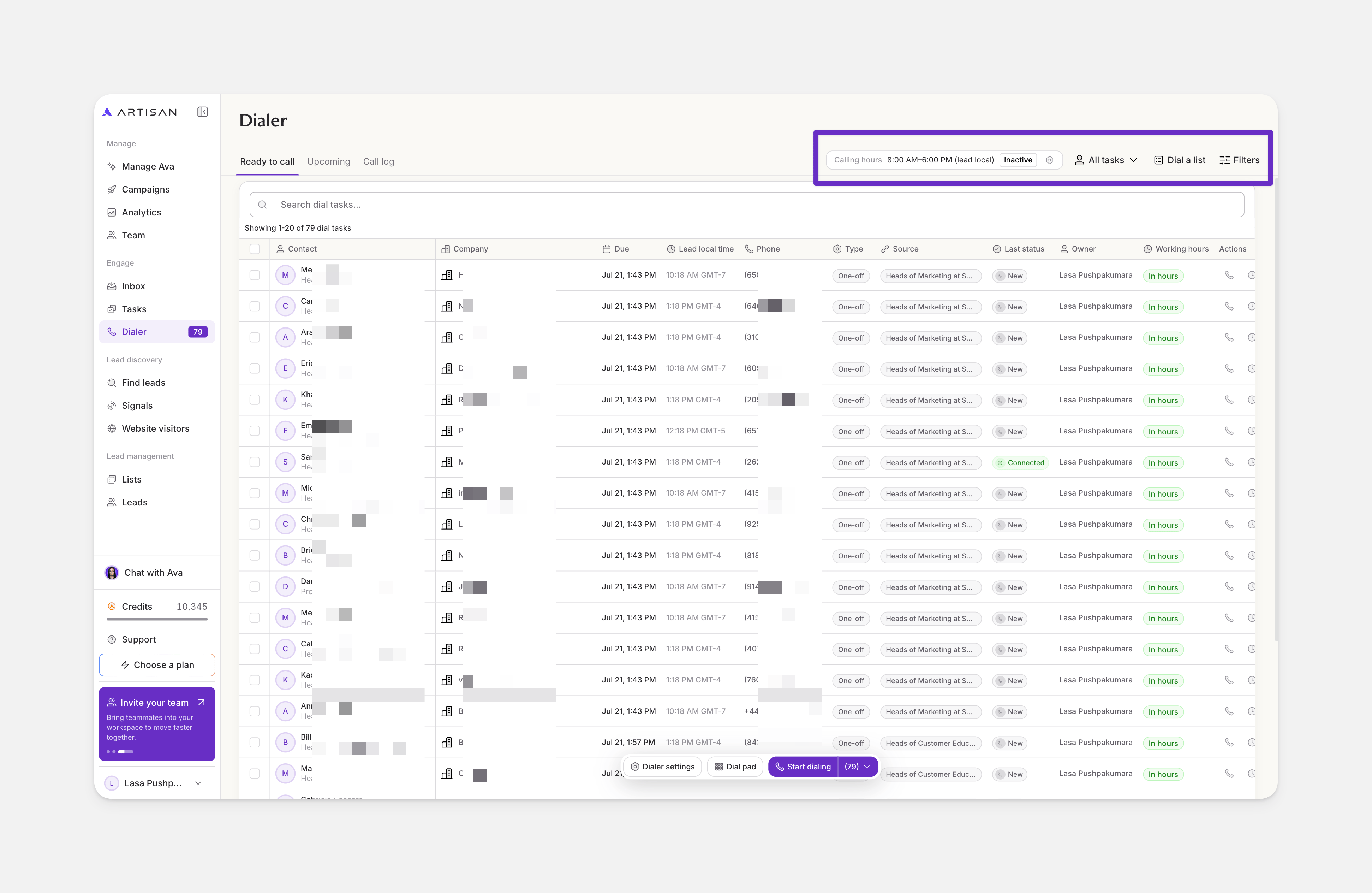
- Calling hours: the window when leads are callable. By default, this uses the lead’s local time, and the Working hours column shows whether each lead is currently within calling hours. You can only call leads during their local working hours, so if your list includes people in different time zones, they won’t all be callable at once. Each lead becomes callable when its working hours begin.
- All tasks: filter the queue by the person who owns each task.
- Salesfloor: a shared room where your team can listen in on each other’s live calls with leads in real time.
- Dial a list: how you get leads into your dial queue. There are two ways to create a list. You can build a brand new list from Artisan’s database, searching and filtering by role, seniority, location, company, and other criteria to find the exact people you want to call, or you can choose a list you already have in Campaigns.
- Filters: narrow the queue by owner, type, source, calling window, and last status.
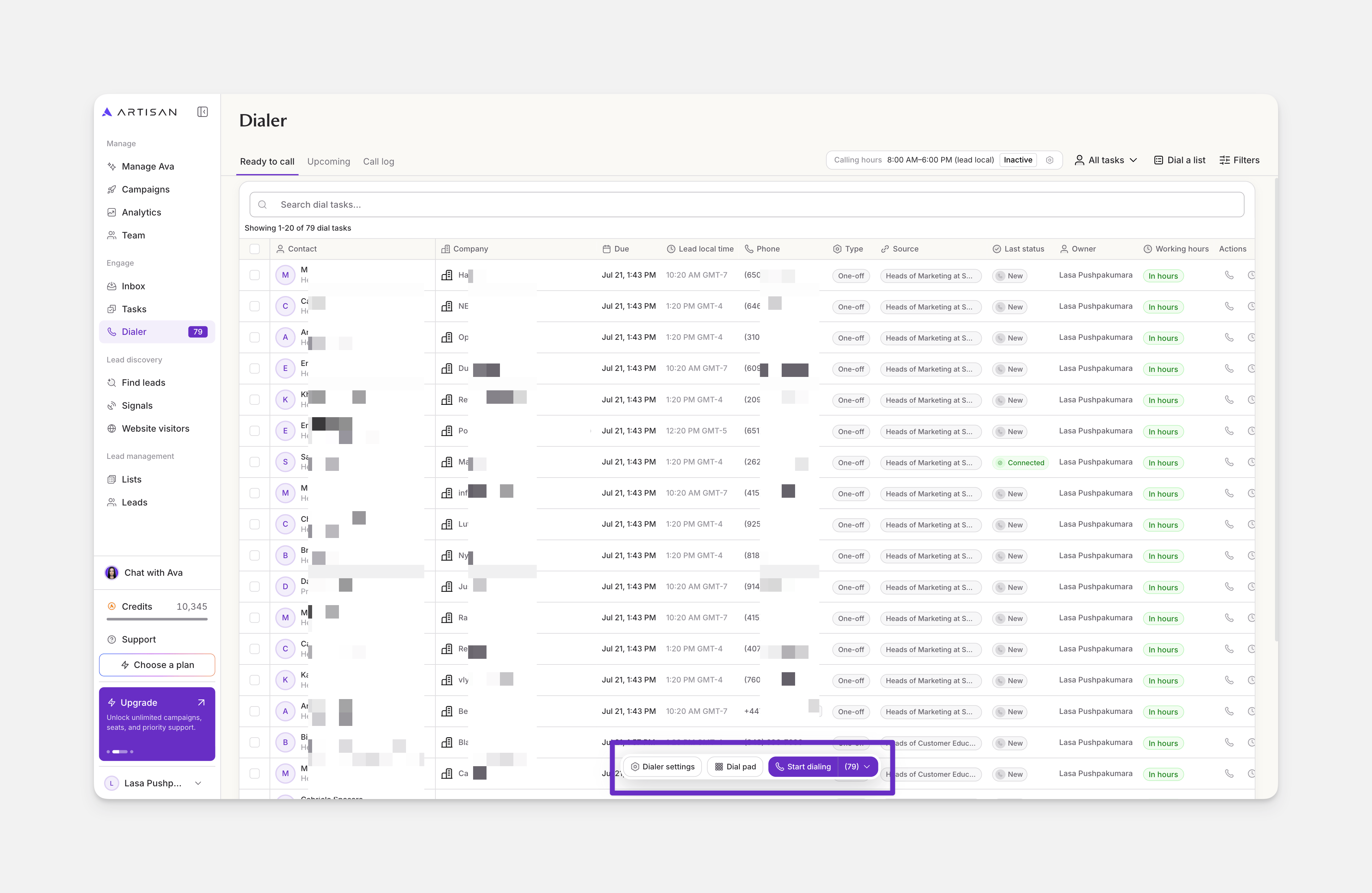
- Dialer settings: manage seats and users, phone numbers, and automation.
- Dial pad: make a call to any phone number you enter.
- Start dialing: opens the dialing session for the first lead in your list, so you can start calling. Use the dropdown next to it to choose parallel dialing, which allows you to call several leads at once and connects you to whoever answers first. Learn more about parallel dialing.
Making a call
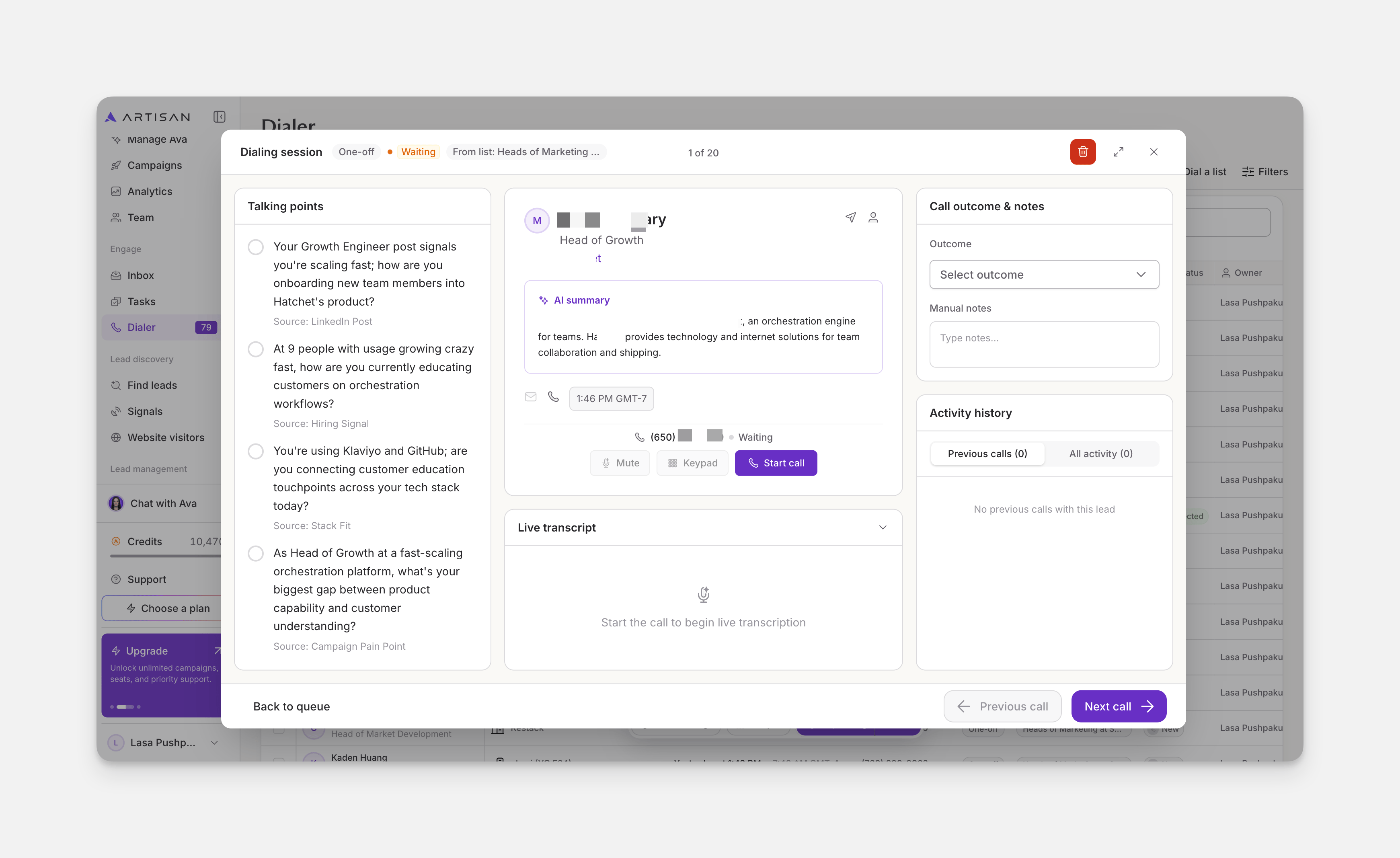
Click Start dialing to call the first lead in your queue, or click any lead in the list to start with that one.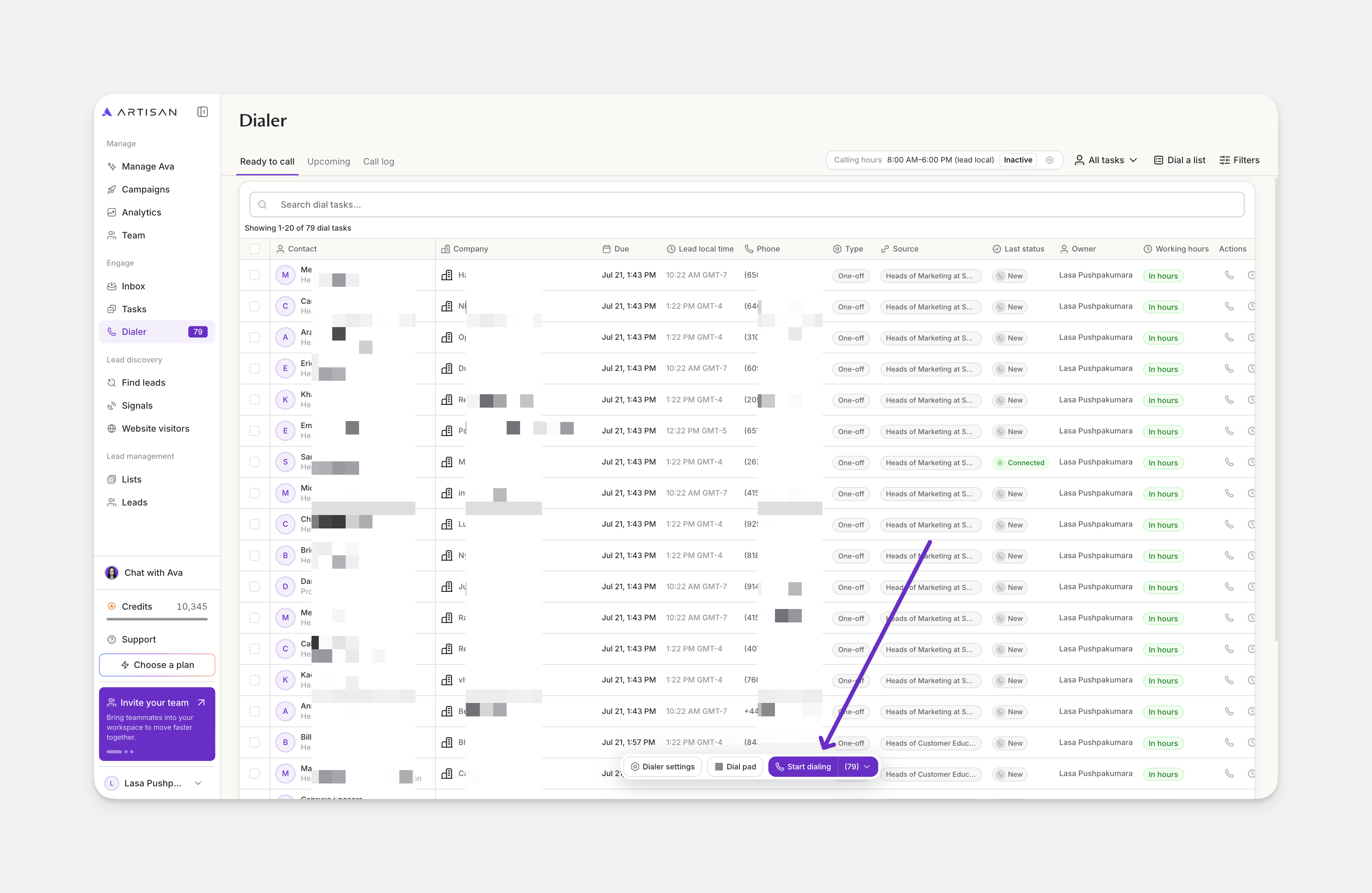
Returned calls reach the person who made the original call on their callback number. You set this in Dialer settings.
Salesfloor
Salesfloor is a shared room where your team can listen in on each other’s live calls with leads in real time. Every user with a Dialer seat can create their own room. Teammates can join to listen and send tips to whoever’s on the call. Team members who only want to listen to calls don’t need a Dialer seat.Starting a session
- Open Salesfloor and click Start dialing. This will open your dial tasks.
- Call leads as you normally would. Teammates who’ve joined your room can now listen and send you guidance.
Joining a teammate’s room
- Open Salesfloor and find the teammate’s room you want to join.
- Click Join.
- You’ll hear their calls once they start dialing, and you can send tips in the chat.
Frequently asked questions
What is the difference between a Sequence and a One-off task?
What is the difference between a Sequence and a One-off task?
A Sequence task is part of a campaign sequence that includes a call step. A One-off task comes from Dial a list or a manual call task. The queue shows the type on each row, so you can tell where a task came from.
Does Dial a list check for do-not-call numbers?
Does Dial a list check for do-not-call numbers?
Yes. DNC checks run when you prepare a list, and leads you should not call are excluded from the queue. See Configure DNC.
Can I select more than one list when choosing an existing list?
Can I select more than one list when choosing an existing list?
No, you can select only one list at a time. To add more, use Dial a list again and pick another list. Each task keeps its own source, so you can tell them apart in the queue by the campaign shown in the Source column.
Which locations does the Dialer support?
Which locations does the Dialer support?
You can buy phone numbers in the United States, Canada, the United Kingdom, Mexico, and Colombia. Each country has its own requirements for buying a number.
You don’t need a local number to call a country. Any number you hold can dial into the enabled destinations: the United States, Canada, the United Kingdom, France, Germany, Brazil, India, Israel, Japan, and Australia. Calls to countries outside this list won’t connect.
You don’t need a local number to call a country. Any number you hold can dial into the enabled destinations: the United States, Canada, the United Kingdom, France, Germany, Brazil, India, Israel, Japan, and Australia. Calls to countries outside this list won’t connect.
Which number do the leads see when I call them?
Which number do the leads see when I call them?
If your workspace has multiple numbers, Artisan automatically selects which number each call goes out from, based on the lead’s location and the remaining daily call allowance for each number. This helps show the lead a local-looking number and keeps any single number from going over its daily limit.
How are credits used in the Dialer?
How are credits used in the Dialer?
Each call costs 1 credit, whether it comes from a campaign sequence, a list, or the dial pad. If a lead has no phone number, Artisan can find one for you for 10 credits per lead.