> ## Documentation Index
> Fetch the complete documentation index at: https://support.artisan.co/llms.txt
> Use this file to discover all available pages before exploring further.
# Intro to dialer
> Call your leads through Artisan, with AI talking points, live transcripts, and outcomes logged as you go.
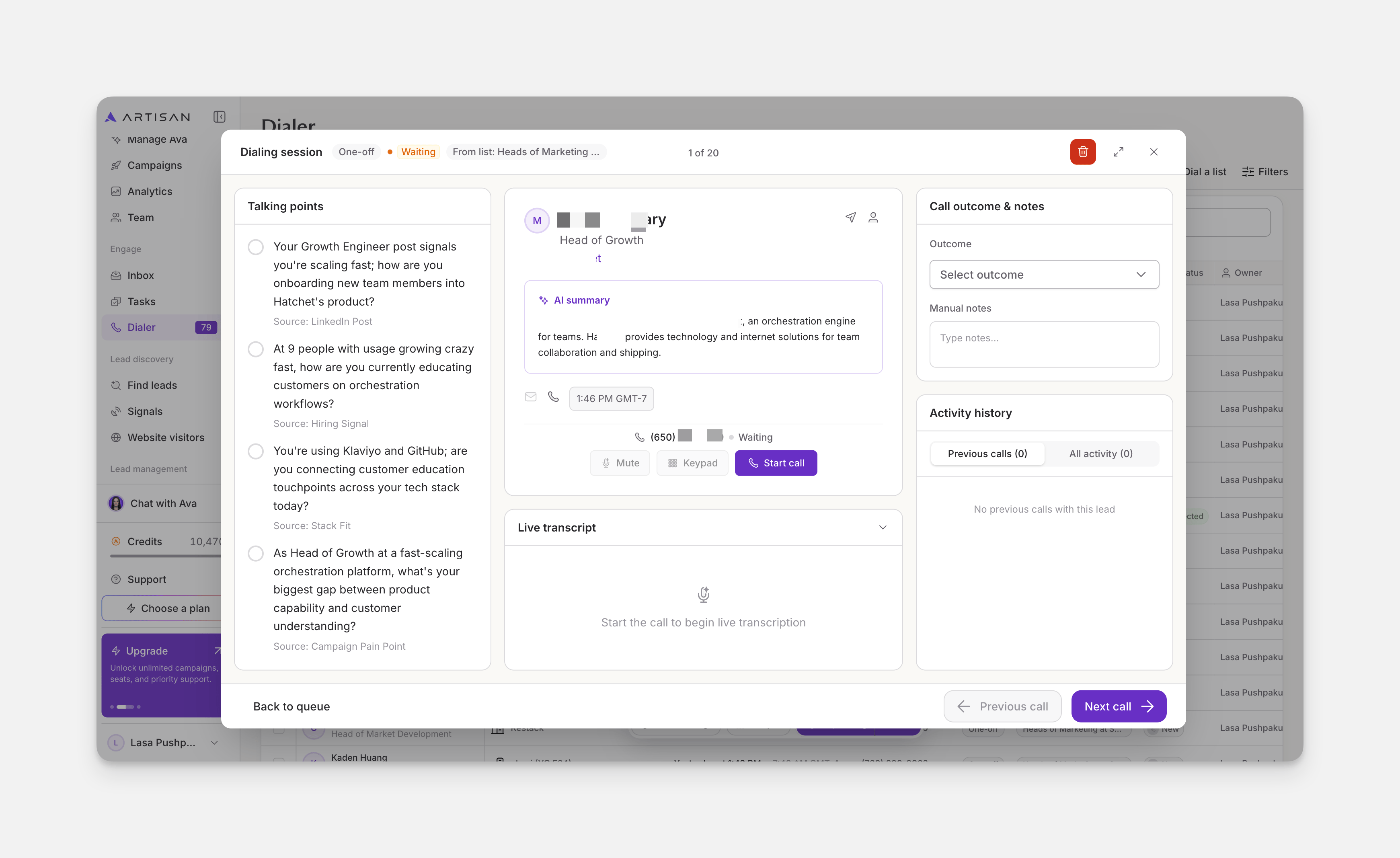
The Dialer is a calling workspace inside Artisan where you make and manage calls. You can either select a campaign you already created or create a new list from scratch. Open any lead and you see **Talking points**, a short **AI summary** of the lead, a **Live transcript** once the call starts, **Call outcome & notes**, and an **Activity history**.
You need a Dialer seat and a phone number before you can call leads. Dialer seats and phone numbers are paid add-ons. See [pricing](https://www.artisan.co/pricing) to learn more.
### The Dialer page
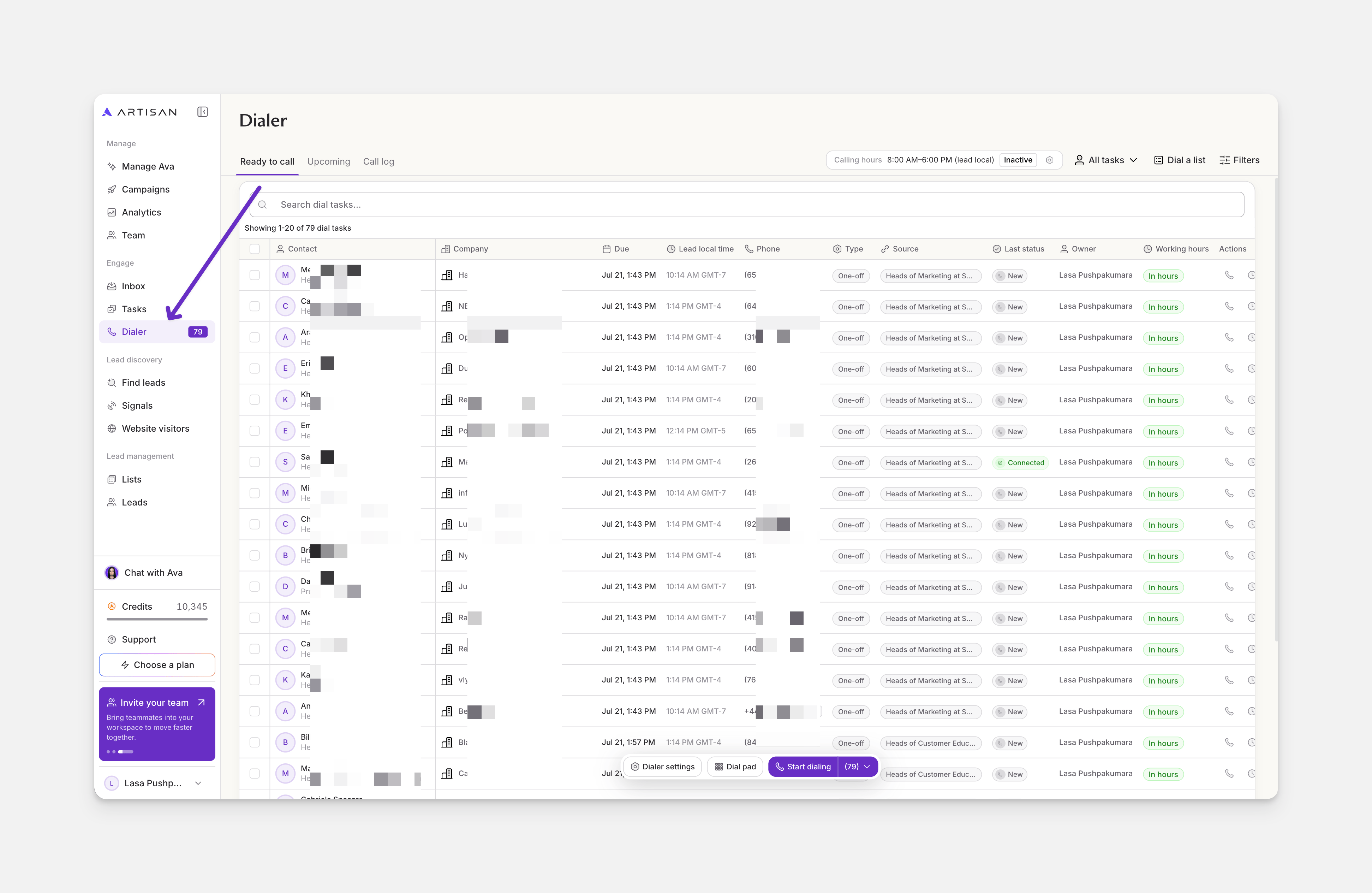 When you open the Dialer for the first time, you won’t see any dial tasks. To add contacts to your dial queue and start calling leads, you have to purchase a Dialer seat and a phone number first.
Once your workspace has a seat and a phone number, you can create dial tasks and start calling your leads.
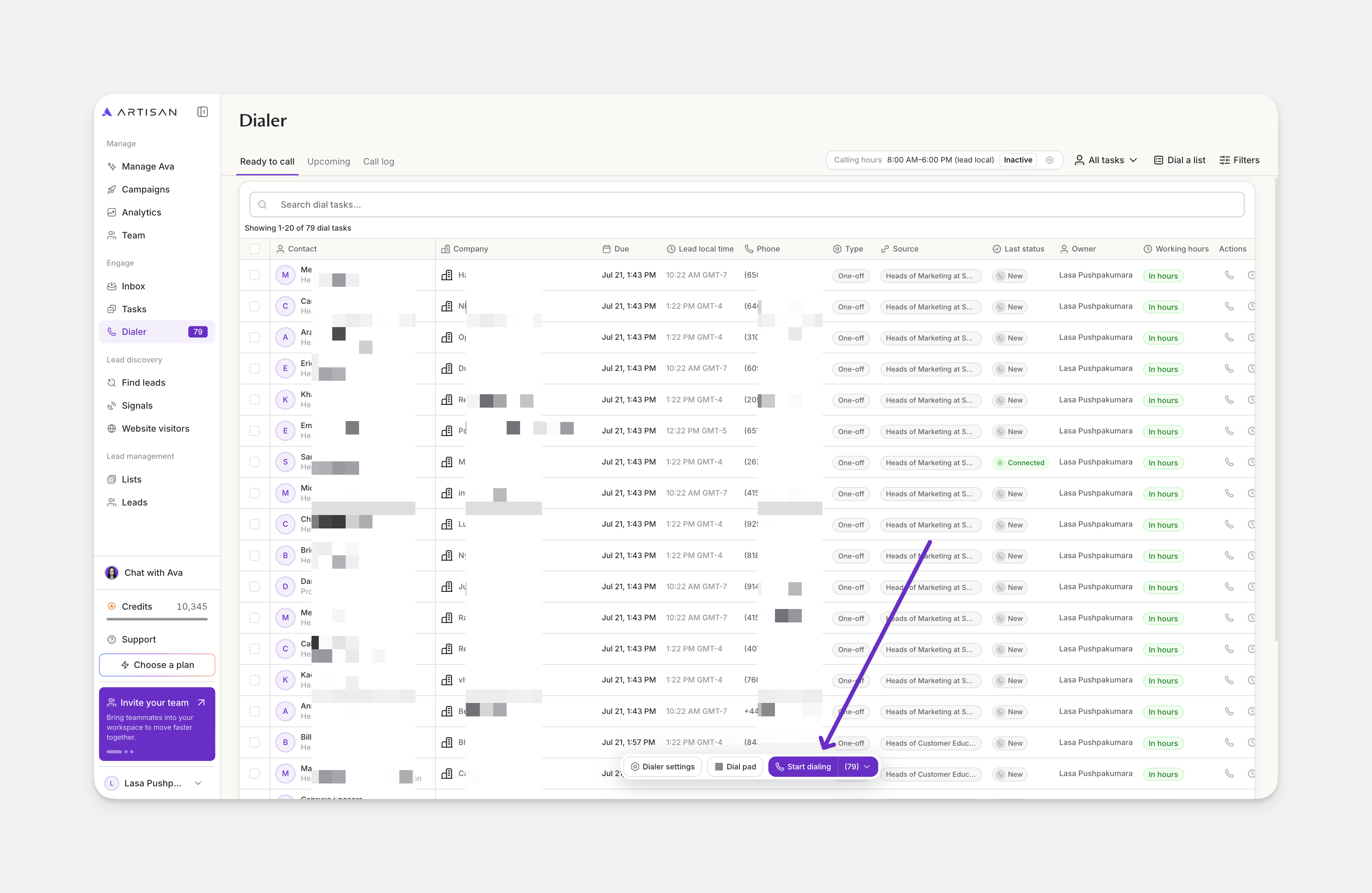
The Dialer has three tabs. **Ready to call** holds your active queue. **Upcoming** holds calls scheduled for later. **Call log** shows your finished calls.
When you open the Dialer for the first time, you won’t see any dial tasks. To add contacts to your dial queue and start calling leads, you have to purchase a Dialer seat and a phone number first.
Once your workspace has a seat and a phone number, you can create dial tasks and start calling your leads.
The Dialer has three tabs. **Ready to call** holds your active queue. **Upcoming** holds calls scheduled for later. **Call log** shows your finished calls.
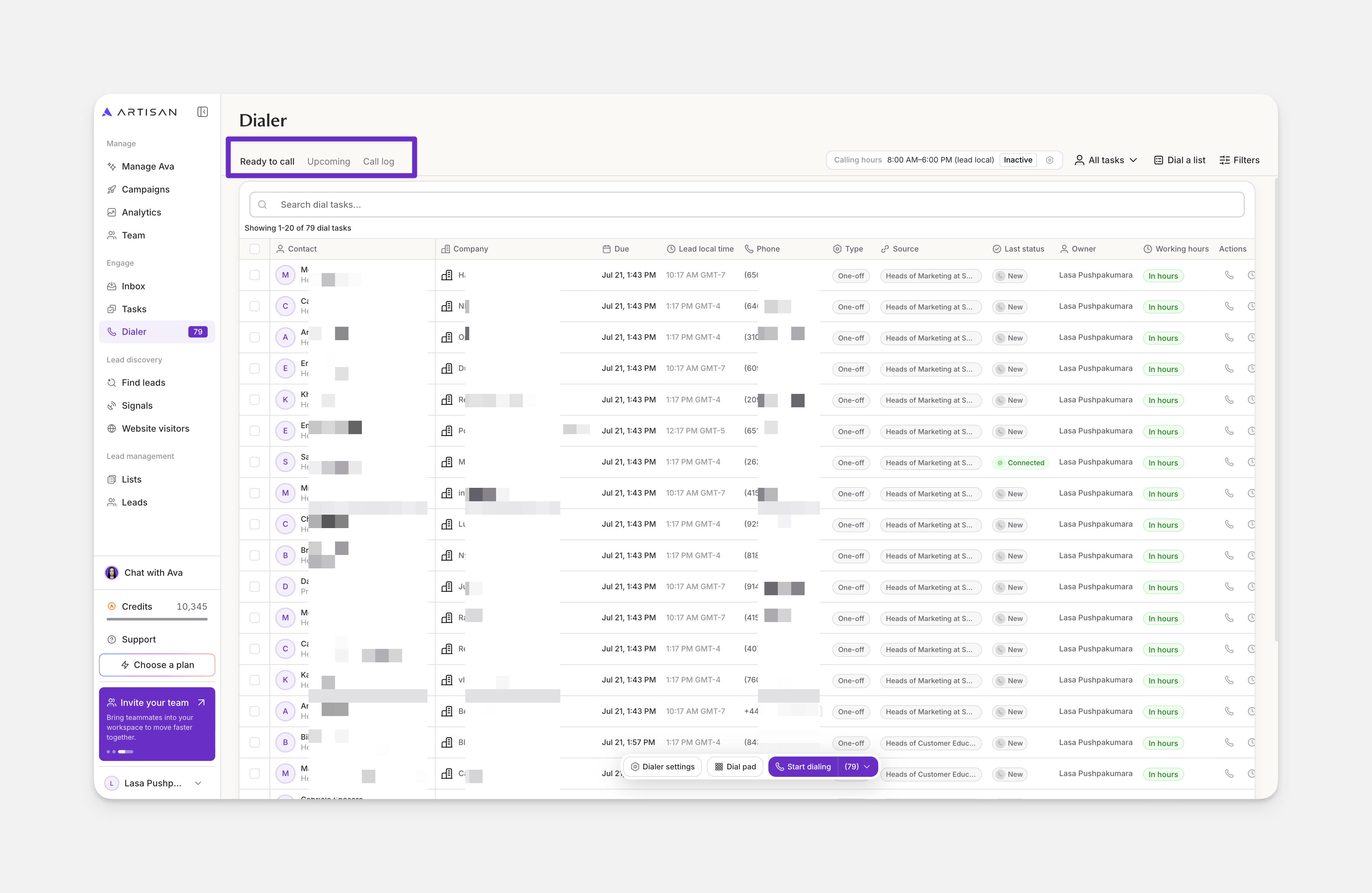 The dial tasks list shows your leads. Each row shows the contact, company, phone number, task type, source, last status, owner, and whether the lead is in calling hours. You can use the search bar to find a specific lead.
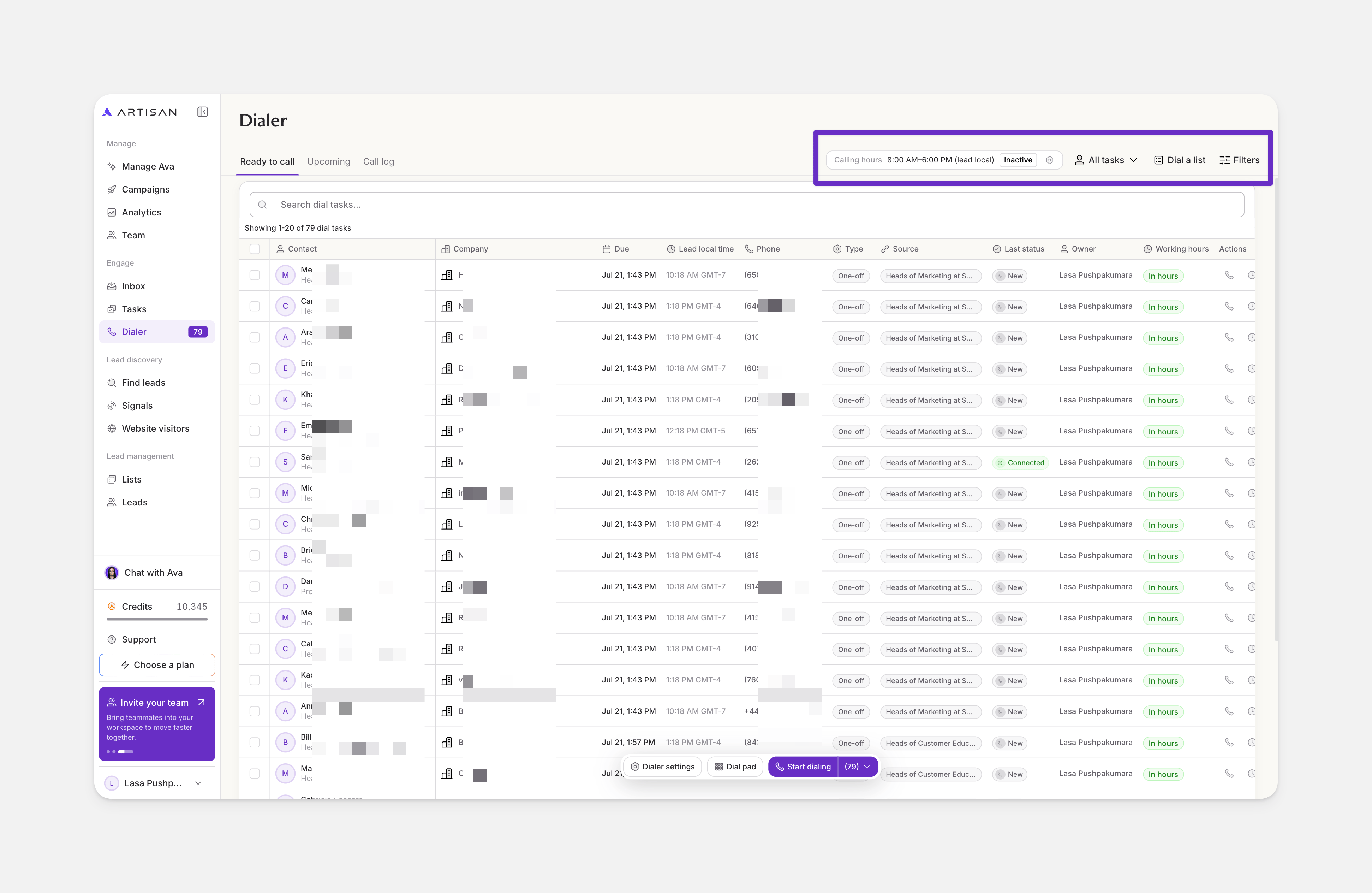
Across the top of the page, you have:
* **Calling hours:** the window when leads are callable. By default, this uses the lead's local time, and the **Working hours** column shows whether each lead is currently within calling hours.
* **All tasks:** filter the queue by the person who owns each task.
* **Dial a list:** how you get leads into your dial queue. There are two ways to create a list. You can build a brand new list from Artisan's database, searching and filtering by role, seniority, location, company, and other criteria to find the exact people you want to call, or you can choose a list you already have in **Campaigns**.
* **Filters:** narrow the queue by owner, type, source, calling window, and last status.
The dial tasks list shows your leads. Each row shows the contact, company, phone number, task type, source, last status, owner, and whether the lead is in calling hours. You can use the search bar to find a specific lead.
Across the top of the page, you have:
* **Calling hours:** the window when leads are callable. By default, this uses the lead's local time, and the **Working hours** column shows whether each lead is currently within calling hours.
* **All tasks:** filter the queue by the person who owns each task.
* **Dial a list:** how you get leads into your dial queue. There are two ways to create a list. You can build a brand new list from Artisan's database, searching and filtering by role, seniority, location, company, and other criteria to find the exact people you want to call, or you can choose a list you already have in **Campaigns**.
* **Filters:** narrow the queue by owner, type, source, calling window, and last status.
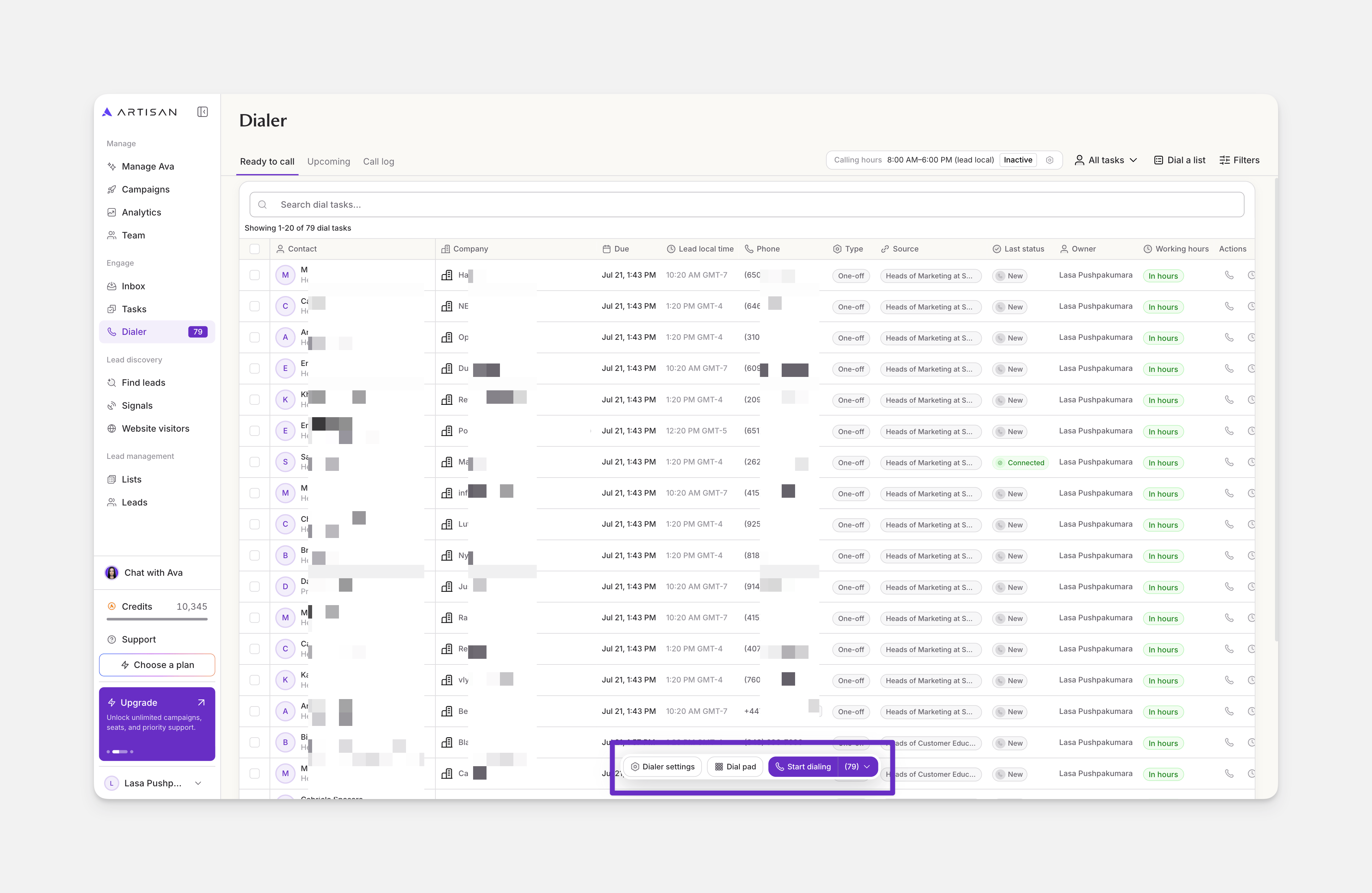
 Along the bottom of the page, you have:
* **Dialer settings:** manage seats and users, phone numbers, and automation.
* **Dial pad:** make a call to any phone number you enter.
* **Start dialing:** opens the dialing session for the first lead in your list, so you can start calling.
Along the bottom of the page, you have:
* **Dialer settings:** manage seats and users, phone numbers, and automation.
* **Dial pad:** make a call to any phone number you enter.
* **Start dialing:** opens the dialing session for the first lead in your list, so you can start calling.
 ## Make a call
Click **Start dialing** to start calling from the first lead in your queue, or click any lead in the list to start with that one.
## Make a call
Click **Start dialing** to start calling from the first lead in your queue, or click any lead in the list to start with that one.
 You'll see **Talking points** to guide the conversation, an **AI summary** of the lead, and their phone number with a **Start call** button. Click **Start call** to place the call. A **Live transcript** will appear as you talk. When the call ends, you can log **Call outcome & notes**. Use **Next call** to move to the next lead, **Previous call** to go back to the previous lead, or **Back to queue** to return to the list
 ## Frequently asked questions
A Sequence task comes from a campaign sequence that includes a call step. A One-off task comes from Dial a list or a manual call task. The queue shows the type on each row so you can tell where a task came from.
Yes. DNC checks run when you prepare a list, and leads you should not call are left out of the queue. See [Configure DNC](https://support.artisan.co/configure-dnc).
No, you can select only one list at a time. To add more, use **Dial a list** again and pick another list. Each task keeps its own source, so you can tell them apart in the queue by the campaign shown in the **Source** column.
The Dialer offers phone numbers in the United States, Canada, and the United Kingdom. To get a phone number in one of these countries, you verify a business address in that country during Dialer setup. You can still call leads in other countries using your number.
## Frequently asked questions
A Sequence task comes from a campaign sequence that includes a call step. A One-off task comes from Dial a list or a manual call task. The queue shows the type on each row so you can tell where a task came from.
Yes. DNC checks run when you prepare a list, and leads you should not call are left out of the queue. See [Configure DNC](https://support.artisan.co/configure-dnc).
No, you can select only one list at a time. To add more, use **Dial a list** again and pick another list. Each task keeps its own source, so you can tell them apart in the queue by the campaign shown in the **Source** column.
The Dialer offers phone numbers in the United States, Canada, and the United Kingdom. To get a phone number in one of these countries, you verify a business address in that country during Dialer setup. You can still call leads in other countries using your number.